Custom tags can be added to any Asset on a Canvas and in Generation Studio.

Add a tag to an Asset on a Canvas

Click the Add Tag circle in the top right corner of any asset on canvas

Tag 0
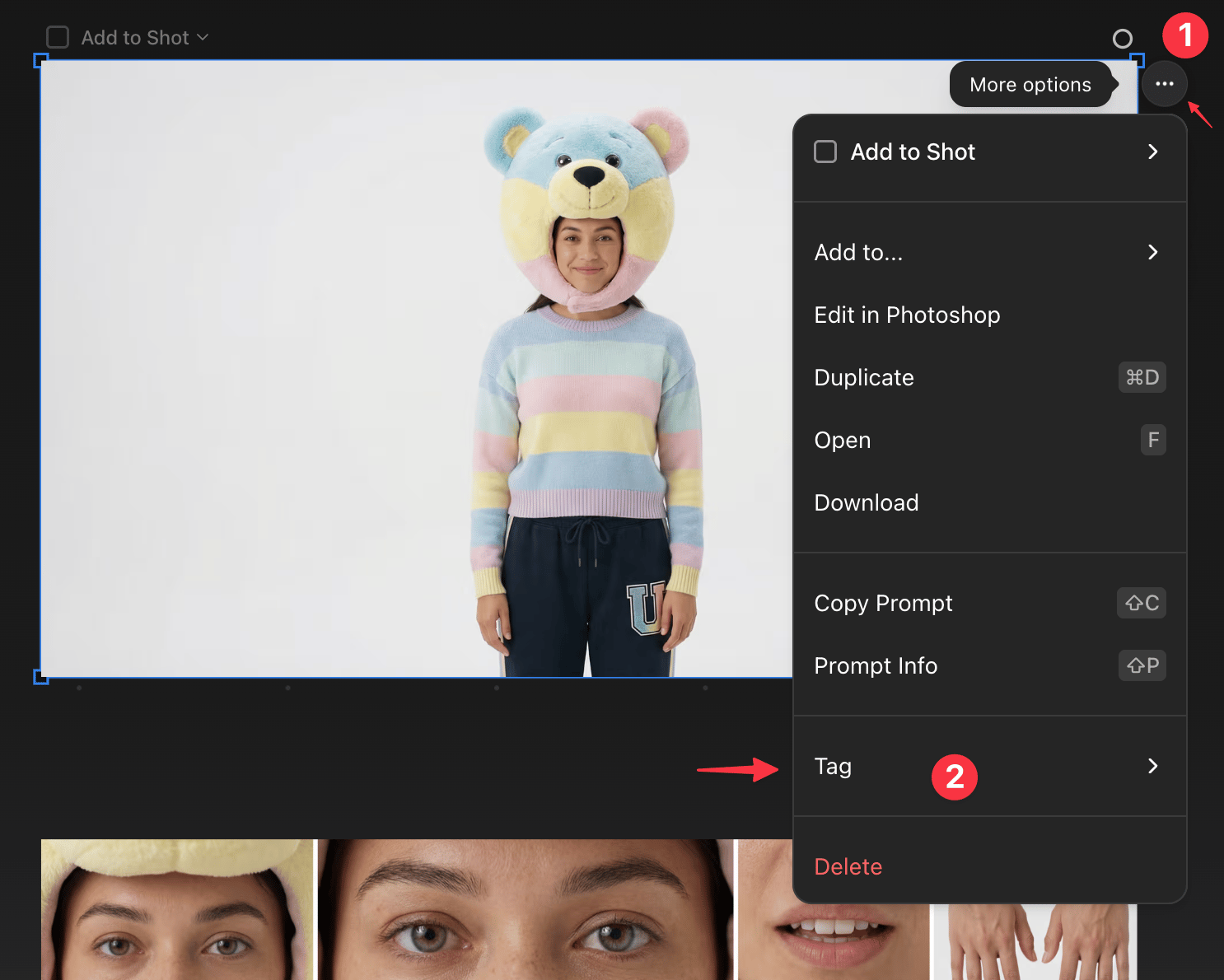
Or click the three-dot menu and select Tag
Tags 2
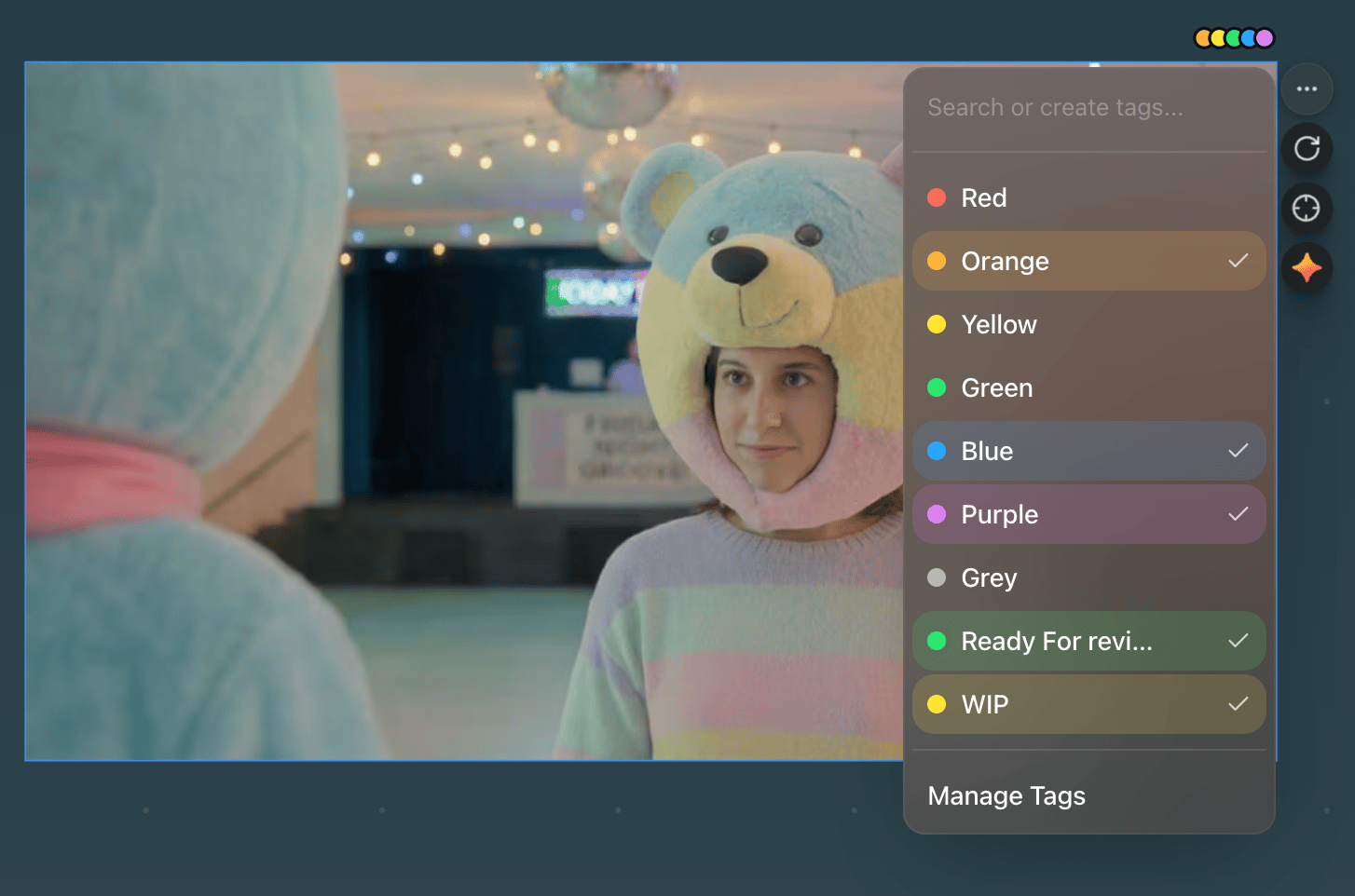
This will open the Custom Tag menu.
Clean Shot 2026 04 29 At 16 43 11@2x
Click on any tag to add it to your asset. You can have up to 10 tags at a time. You can change the name of any tag and reuse any color for custom tags.
Tags 4
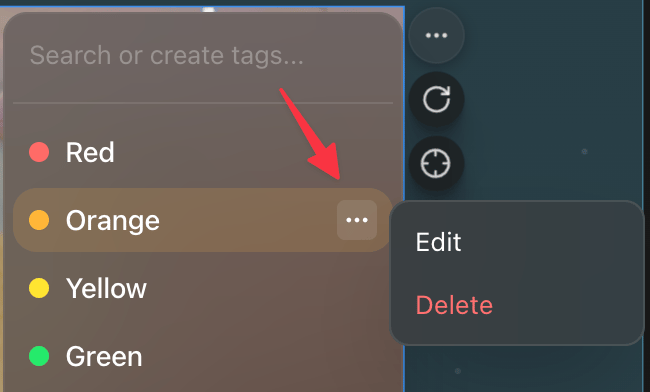
Click the 3-dot on a tag to edit or delete that tag.
Tags 5
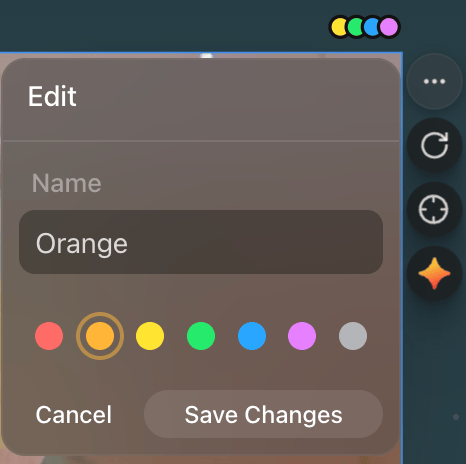
You can change the name and color of any tag.
Clean Shot 2026 04 29 At 16 54 57@2x
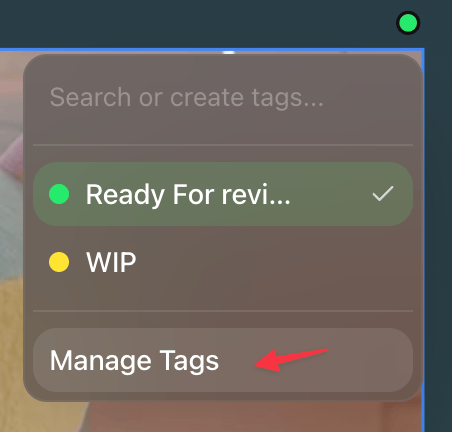
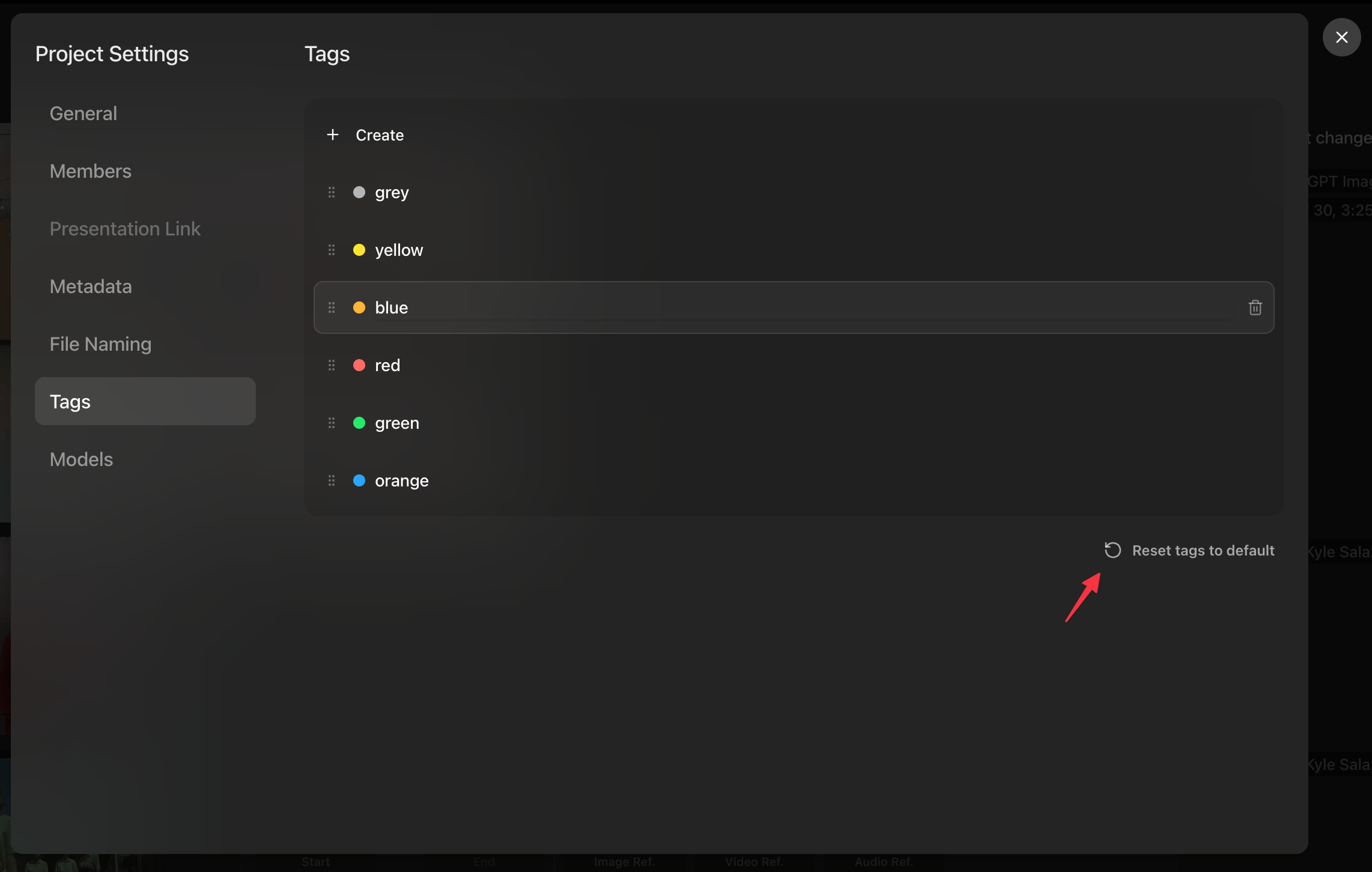
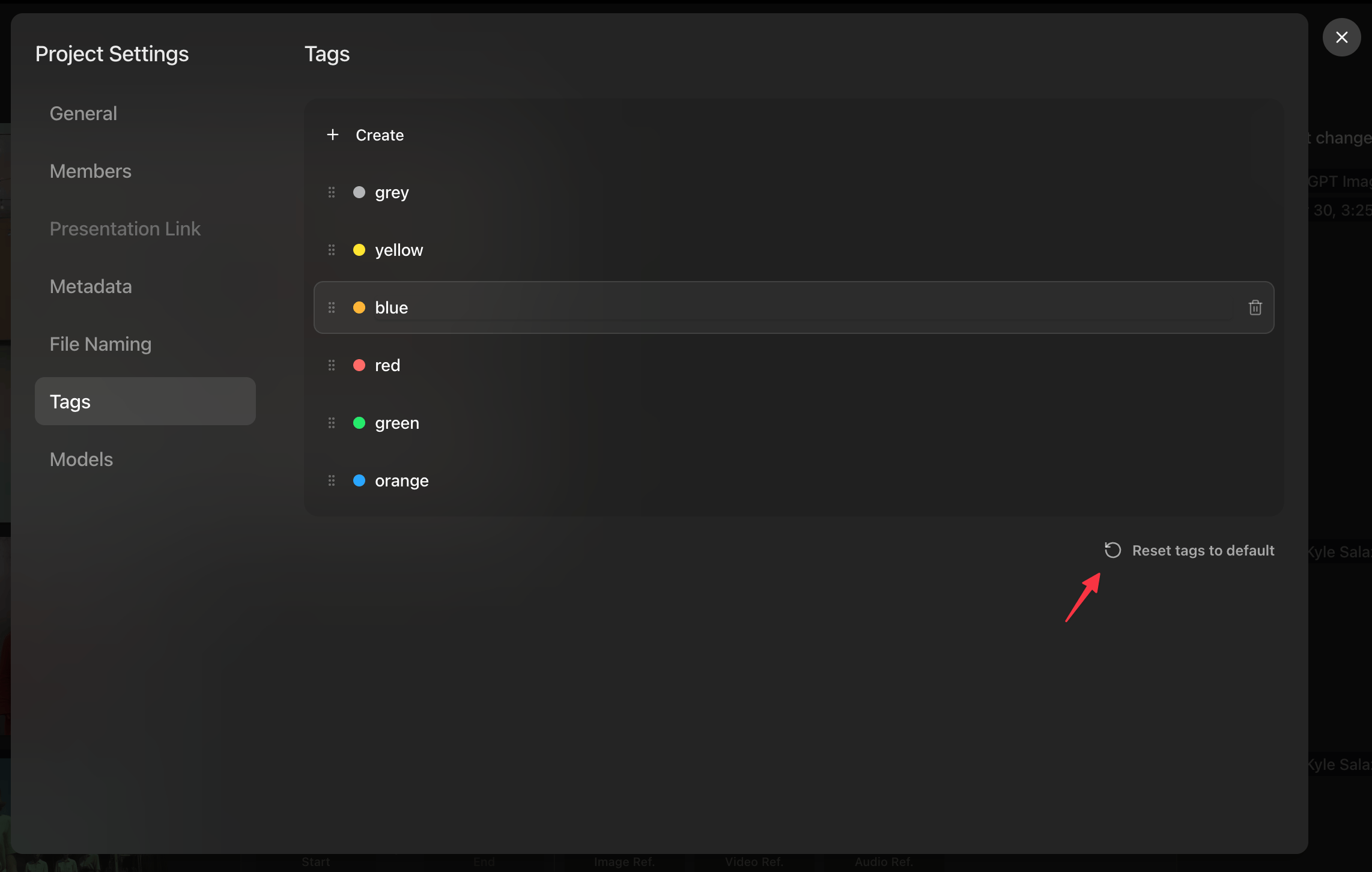
Click Manage Tags in the Tag menu to open the Tag Management screen in Project Settings.
Tags 7 1
Here you can drag to rearrange the tags, click to delete them and change their names and colors. Click ‘Reset tags to default’ to bring back the original set of tags.
Tags 8

Add a Tag to an Asset in Generation Studio

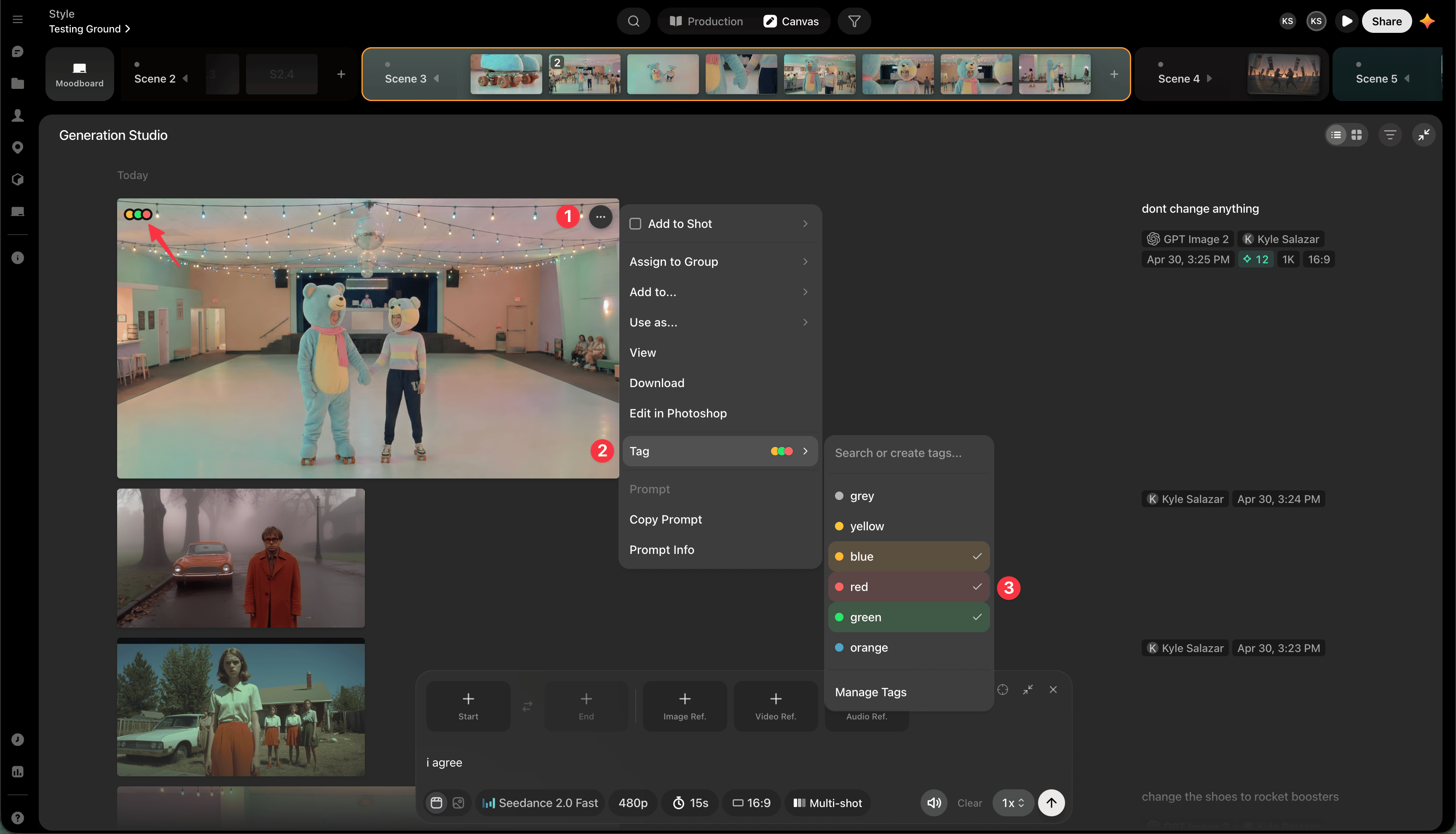
Click the three dot menu in the upper right corner of any asset, then select Tag, and choose your tags. The color dots appear in the top left corner of the asset
Tags 9 2