

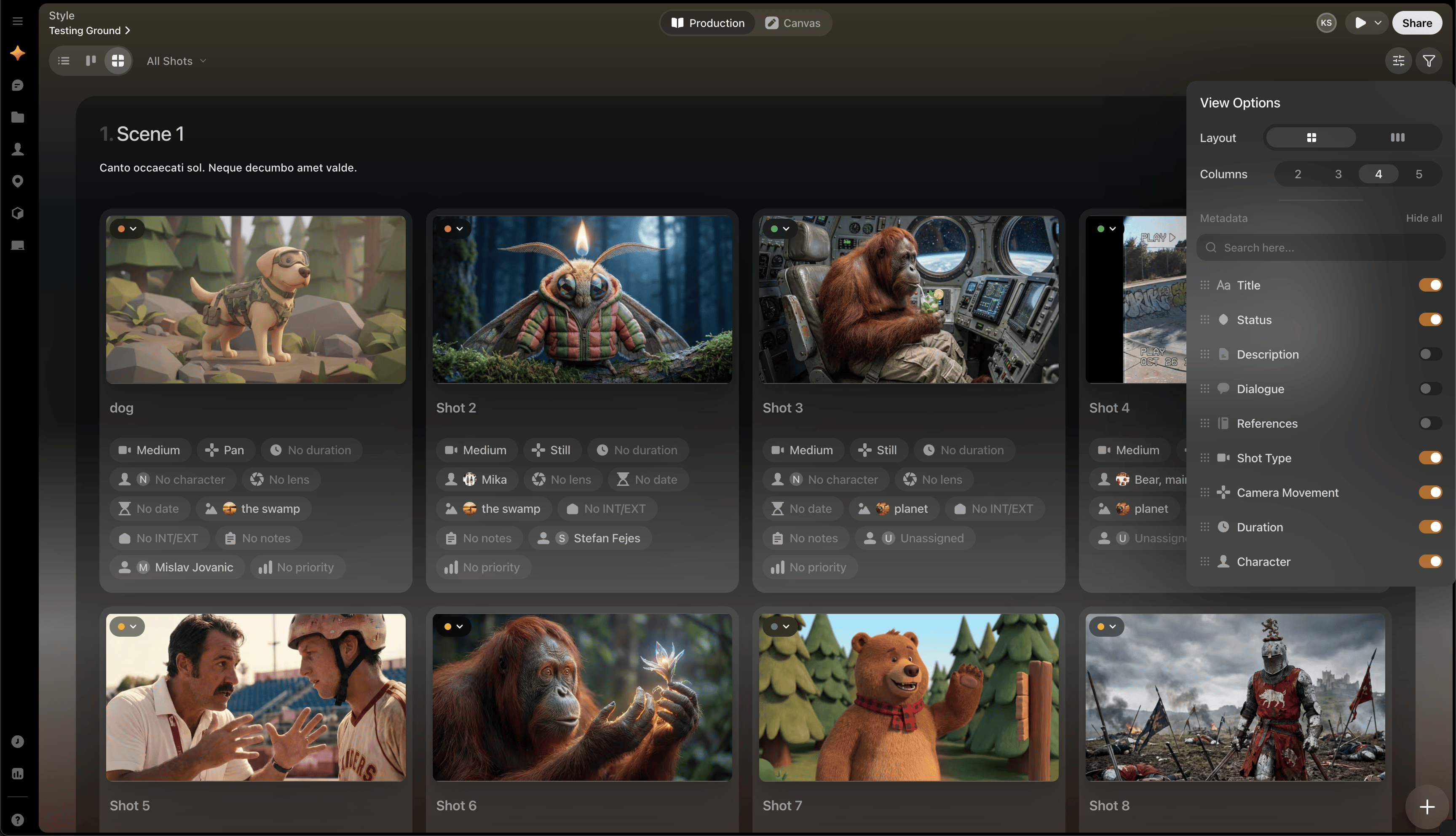
Control what you see
In Storyboard view, you can use View Options to:- Hide or show metadata
- Switch between grid and row layouts
- Change how much information appears with each shot
Shot-level actions
Each storyboard image includes a three-dot menu so you can open more detailed shot and take actions directly from the storyboard layout.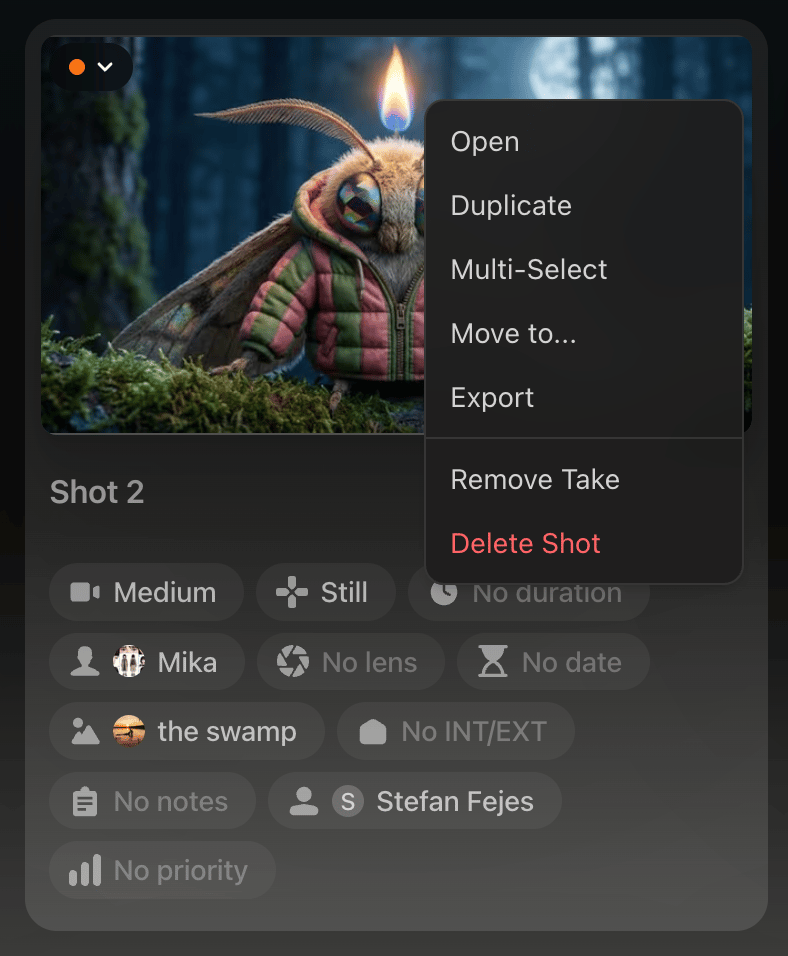
- Open will open Preview window
- Duplicate duplicates the shot and places the new copy in the next shot slot in the scene
-
Multi Select allows you to select multiple shots from any number of scenes and then using the toolbar at the bottom of the screen you can move those selected shots to a different scene, collectively change their status, assign a person to them, or delete them.

- Move To… allows you to move the shot to any Scene
-
The 6 vertical dot icon at the top of each shot allows you to drag and drop shots to rearrange them
-
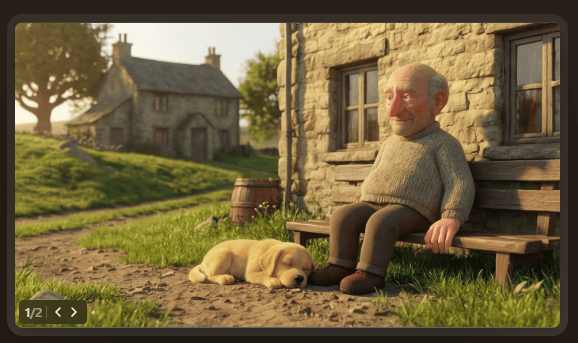
Click the arrows in the bottom left corner of the Shots to change Takes
When to use Storyboard view
Use it when you want to:- Review visual pacing
- Check continuity across a scene
- Scan a scene sequence quickly
- Prepare for discussion with collaborators