> ## Documentation Index
> Fetch the complete documentation index at: https://docs.preview.io/llms.txt
> Use this file to discover all available pages before exploring further.
# File Toolbar
> Use the file toolbar, its More menu, and video-specific controls to work with files on the canvas.
## The toolbar
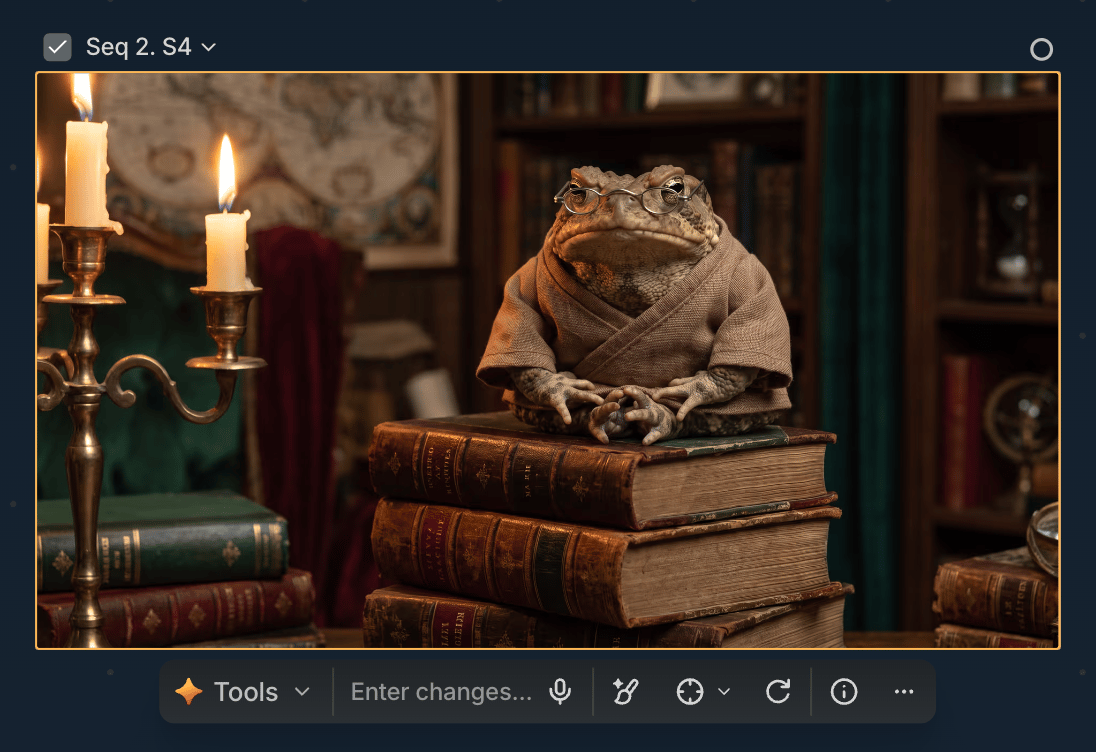
Click a file on the canvas to select it. A toolbar appears below it. Right-click a file for the same More menu, without opening the toolbar first.
Left to right:
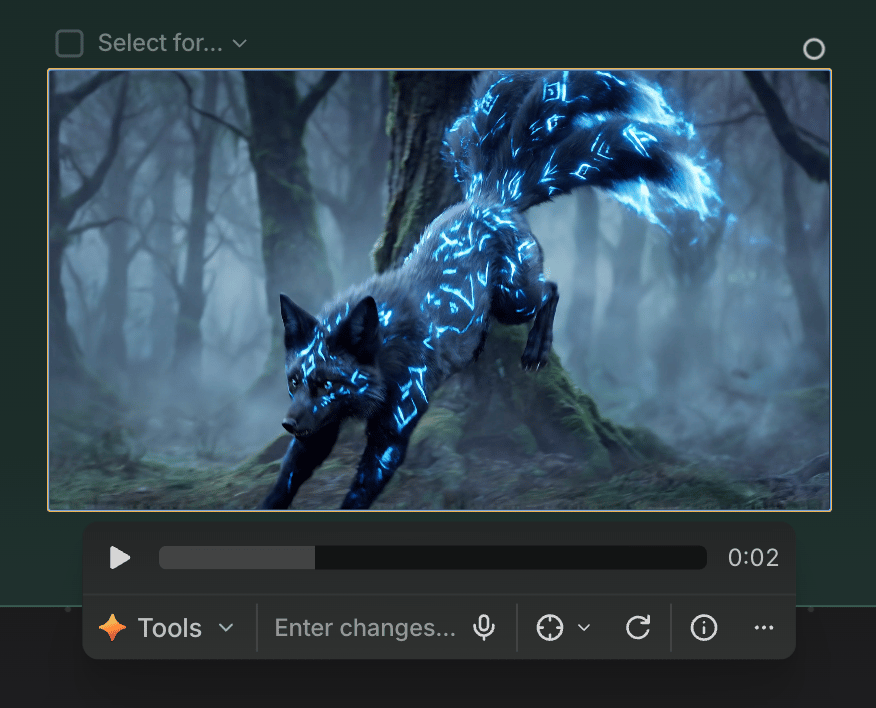
* **Tools**: opens the [Quick Actions](/preview/quick-actions) menu.
* **Enter changes...**: your direct line to [Preview Agent](/preview/agent) for this exact file. Type what you want changed, or just say it with the mic icon, and watch the edit happen right on the canvas.
* **Inpaint**: edit part of the image while leaving the rest unchanged. See [Inpaint](/preview/inpainting).
* **Target**: a quick reference whose label changes with context (**Add as Reference**, **Add as Ingredient**, **Set as Start Frame**, **Set as End Frame**), but it's always adding the file as a reference in some form.
* **Reuse prompt**: places the file's prompt, model, and style or Camera Bag settings back into the prompt box.
* **Prompt info**: a quick popover preview of the generation details; click **More info** inside it for the full [File View](/preview/preview-window).
* **⋯**: everything else, in the More menu below.
 ## The More menu
The toolbar surfaces the actions you reach for most; everything else lives one click deeper in the More menu.
* **Add to...**: save the file into a Character, Location, or Prop.
* Video files also add **Auto split shots** (splits a multi-shot video into separate single-shot files) near the top, plus a **Playback** group, covered below.
* **Duplicate** (⌘D), **View** (F, if fullscreen-capable), **Crop** (C), **Download** (D), and **Copy image** (image only) are self-explanatory.
* **Copy** (⌘C) and **Paste** (⌘V) work across sequences and canvases: copy a file or group in one, paste into another, or paste an image copied from outside Preview.
* **Edit in Photoshop** (image only): covered in [Edit in Photoshop](/preview/edit-in-photoshop).
* **Tag**: add a color tag, covered in [Tags](/preview/tags).
* **Copy prompt** (⇧C) and **Prompt info** (⇧P): Prompt info opens [File View](/preview/preview-window) for the full generation history.
* **Delete**.
## The More menu
The toolbar surfaces the actions you reach for most; everything else lives one click deeper in the More menu.
* **Add to...**: save the file into a Character, Location, or Prop.
* Video files also add **Auto split shots** (splits a multi-shot video into separate single-shot files) near the top, plus a **Playback** group, covered below.
* **Duplicate** (⌘D), **View** (F, if fullscreen-capable), **Crop** (C), **Download** (D), and **Copy image** (image only) are self-explanatory.
* **Copy** (⌘C) and **Paste** (⌘V) work across sequences and canvases: copy a file or group in one, paste into another, or paste an image copied from outside Preview.
* **Edit in Photoshop** (image only): covered in [Edit in Photoshop](/preview/edit-in-photoshop).
* **Tag**: add a color tag, covered in [Tags](/preview/tags).
* **Copy prompt** (⇧C) and **Prompt info** (⇧P): Prompt info opens [File View](/preview/preview-window) for the full generation history.
* **Delete**.
 ## Select multiple files
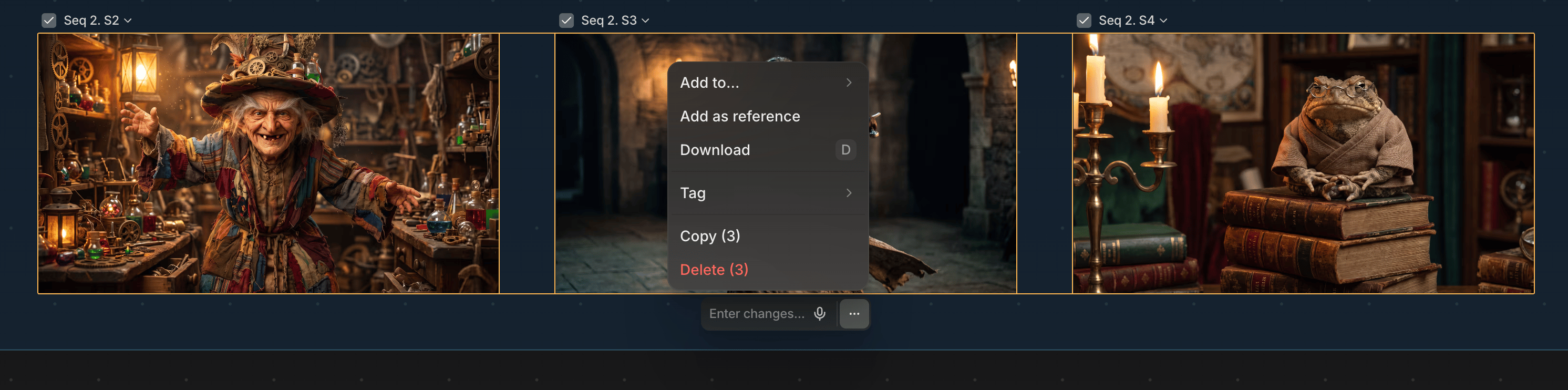
Select 2+ files for a toolbar below the selection:
* **Tidy up**: snap loosely arranged files into a compact grid.
* **Group** (⌘G): group the selection. Same [Groups](/preview/groups) feature as creating one from an empty canvas.
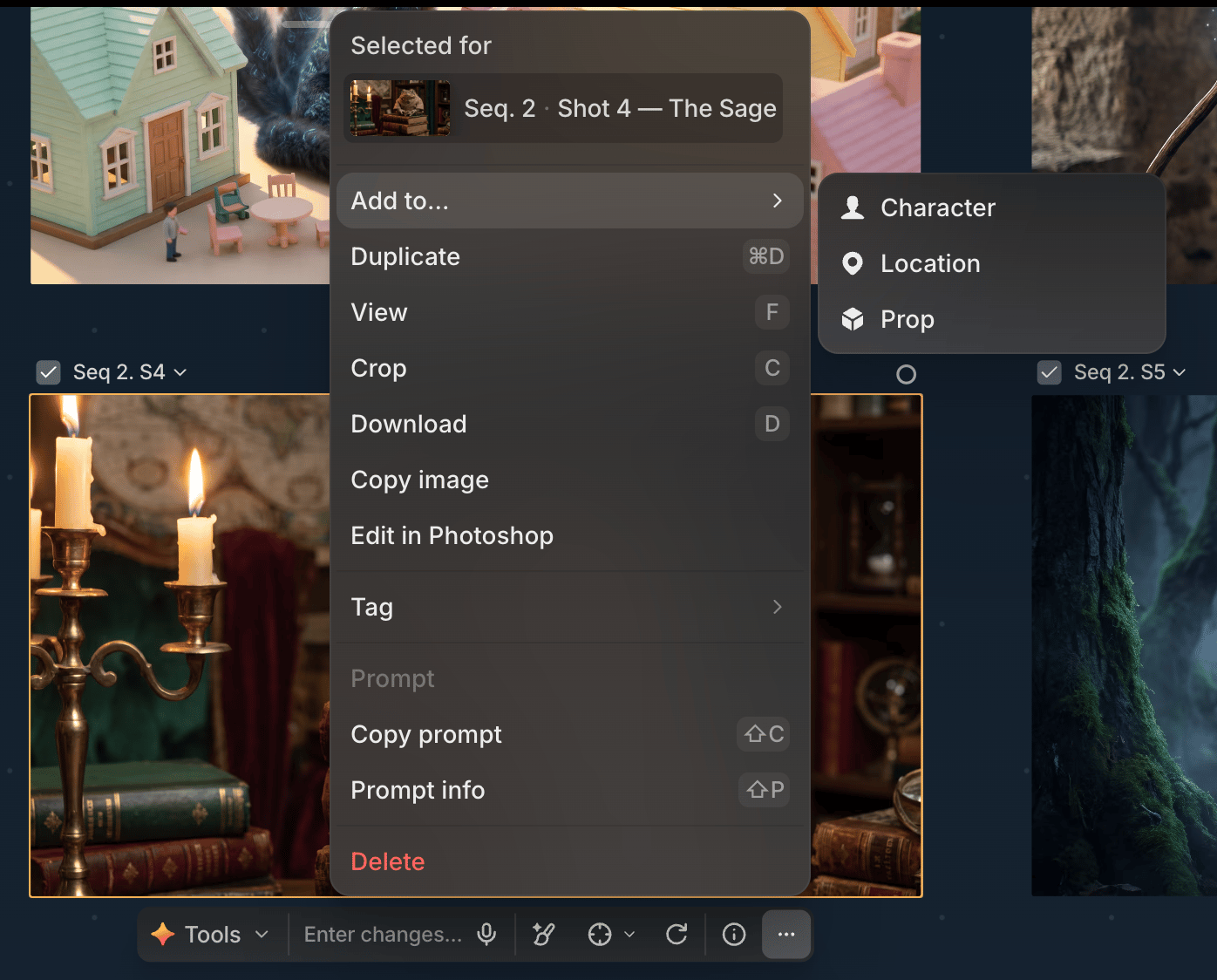
Right-click the selection for a menu instead:
* **Add to...**: save into a Character, Location, or Prop.
* **Add as reference**.
* **Download**.
* **Tag**.
* **Copy (N)** and **Delete (N)**.
## Select multiple files
Select 2+ files for a toolbar below the selection:
* **Tidy up**: snap loosely arranged files into a compact grid.
* **Group** (⌘G): group the selection. Same [Groups](/preview/groups) feature as creating one from an empty canvas.
Right-click the selection for a menu instead:
* **Add to...**: save into a Character, Location, or Prop.
* **Add as reference**.
* **Download**.
* **Tag**.
* **Copy (N)** and **Delete (N)**.
 ## Video-specific actions
Selecting a video adds a **playback row** above the toolbar (play/pause, a scrubber, and the current time) and drops **Inpaint** from the action row, since video can't be inpainted.
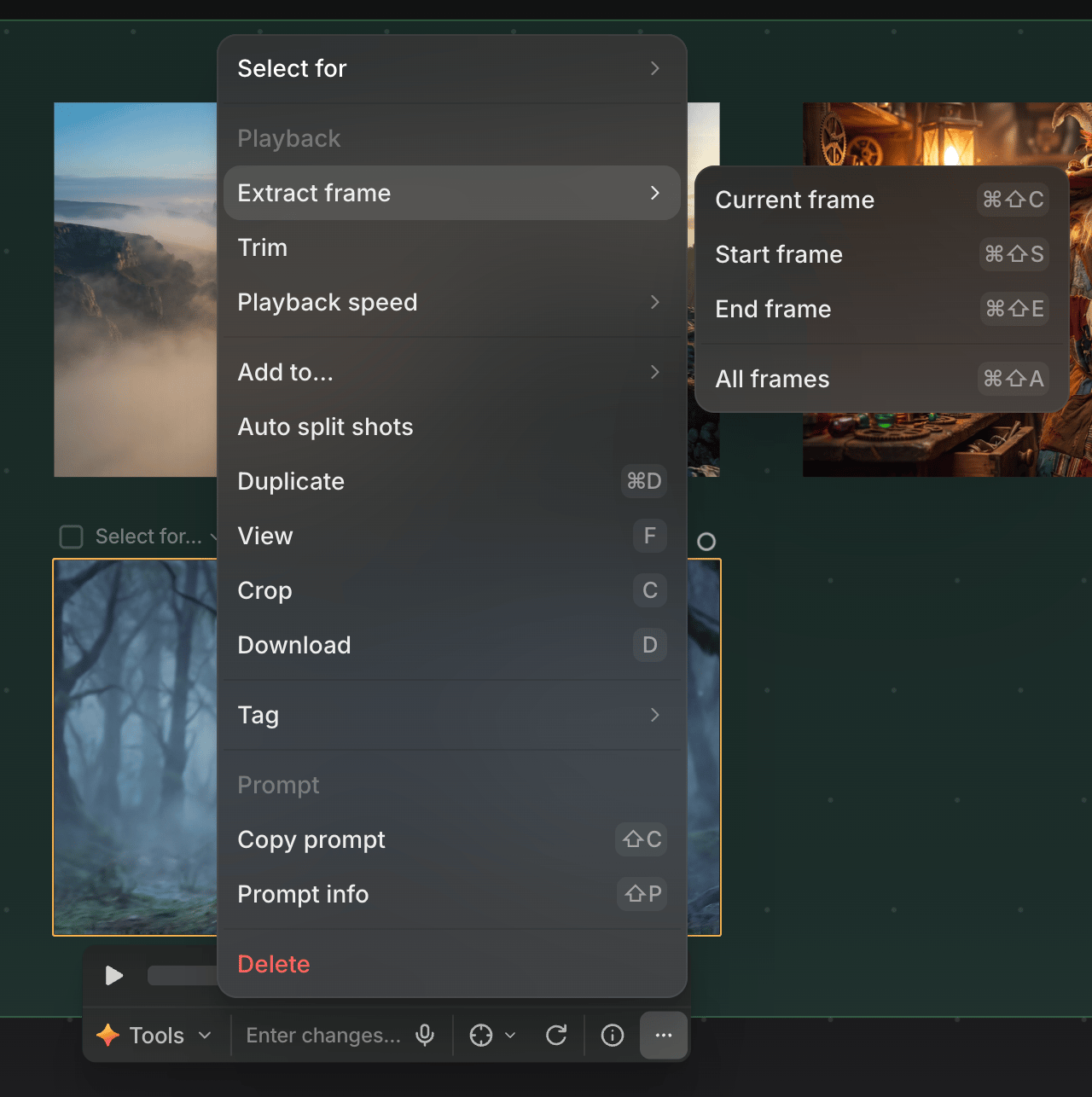
The More menu gets an extra **Playback** section, video only:
* **Extract frame**: Current frame, Start frame, End frame, or All frames.
* **Trim**: replaces the whole toolbar with a dedicated trim row. Drag the handles across the full source timeline, then confirm (✓) or cancel (✗).
* **Playback speed**.
## Video-specific actions
Selecting a video adds a **playback row** above the toolbar (play/pause, a scrubber, and the current time) and drops **Inpaint** from the action row, since video can't be inpainted.
The More menu gets an extra **Playback** section, video only:
* **Extract frame**: Current frame, Start frame, End frame, or All frames.
* **Trim**: replaces the whole toolbar with a dedicated trim row. Drag the handles across the full source timeline, then confirm (✓) or cancel (✗).
* **Playback speed**.